
From paper menu to phone, in an afternoon
How to create your digital menu
Four steps, nothing to install and no design skills needed. And you start for free, no card.
Free forever, no card needed
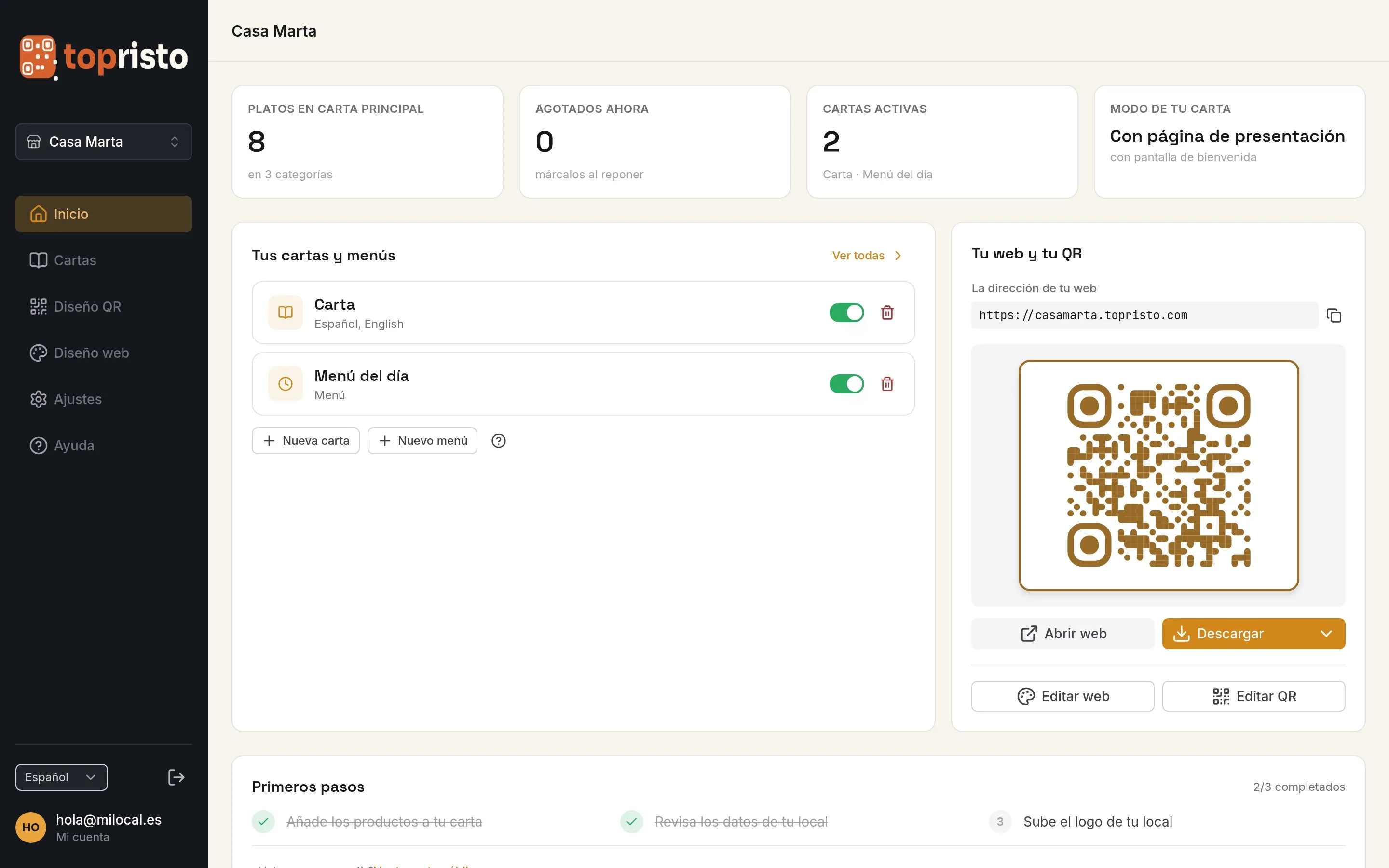
The four steps
Step 1: Create your account
Your email and the name of your venue. No card.
Step 2: Add your menu
By hand, by importing your Excel or by asking us to set it up.
Step 3: Choose your design
One of the 14 templates (4 on the Free plan, all on PRO), with your colour, your logo and your web address.
Step 4: Print your QR
Design the table card and download it, or order it printed.
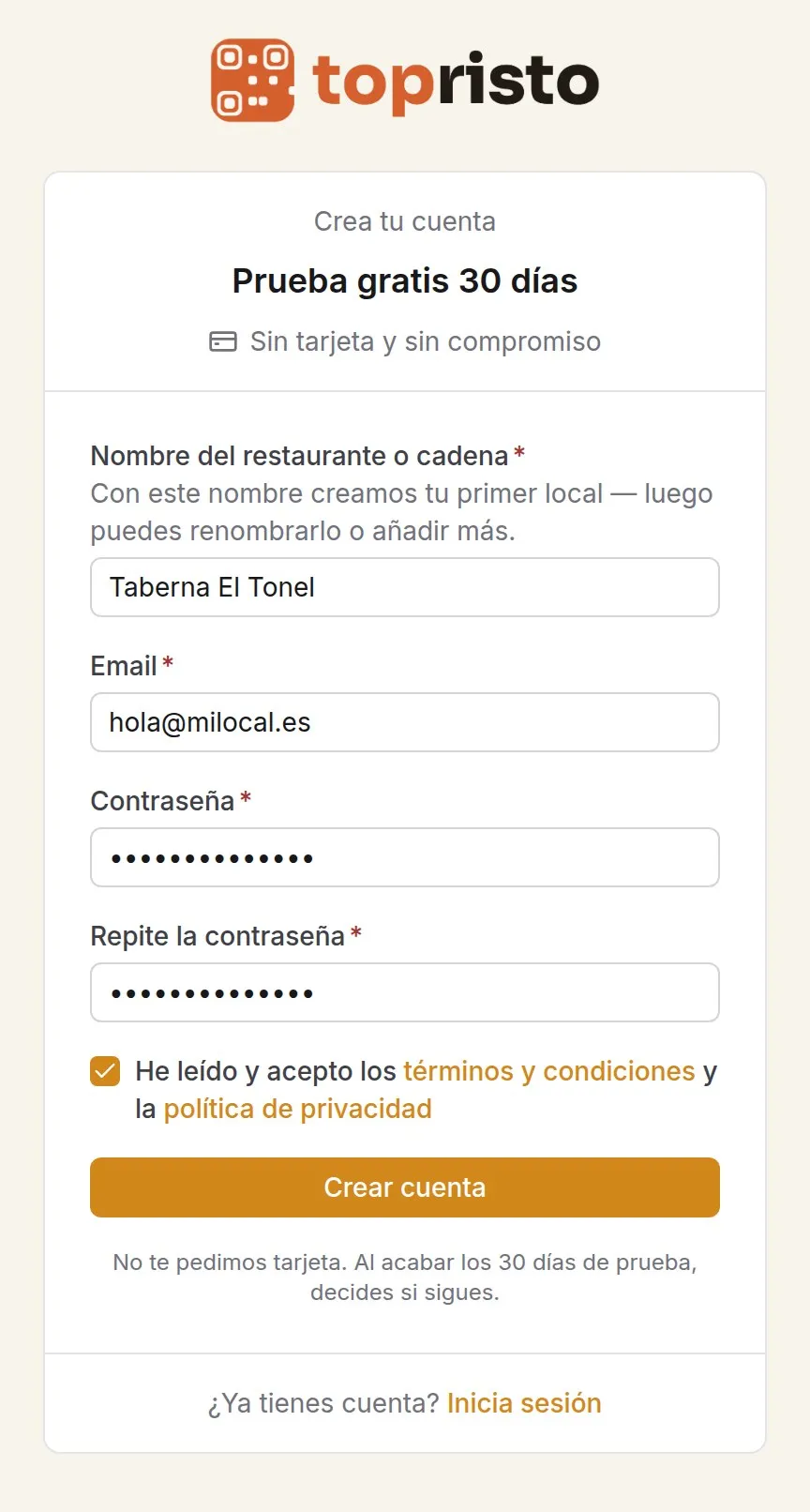
Step 1
Your account, in a minute
Just your email, a password and the name of your venue. When you log in you already have an empty menu, your web address and your QR.
You start on the Free plan: free forever, no card needed. You go PRO when you need more.
Step 2
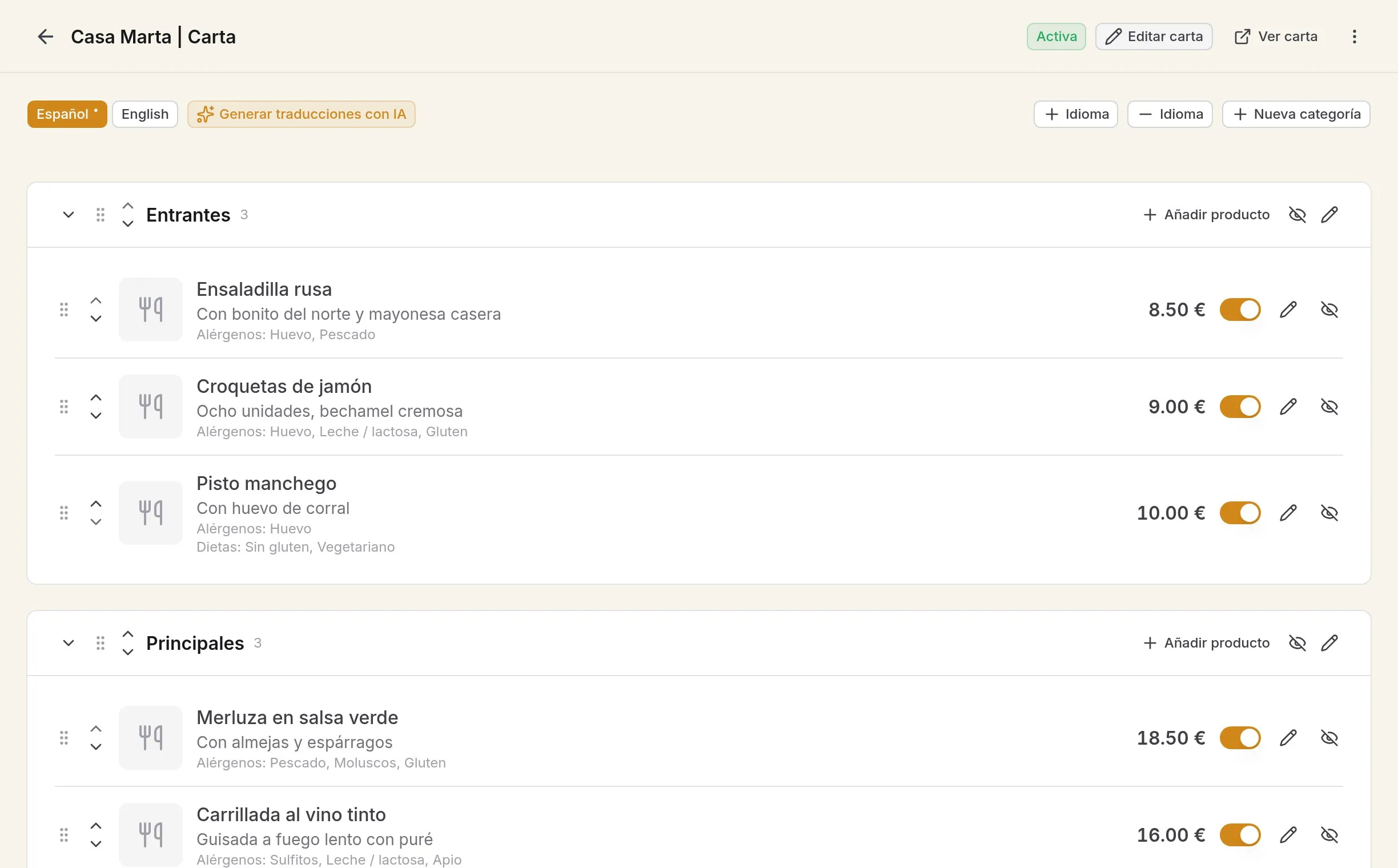
Your menu, set up the way you want
By hand: categories and dishes, with photo, price, variants (half, pint...), allergens and diets.
From Excel: import a CSV and see a preview before anything is saved.
By us: send us your menu on paper, as a PDF or as photos and we load it for you.
Step 3
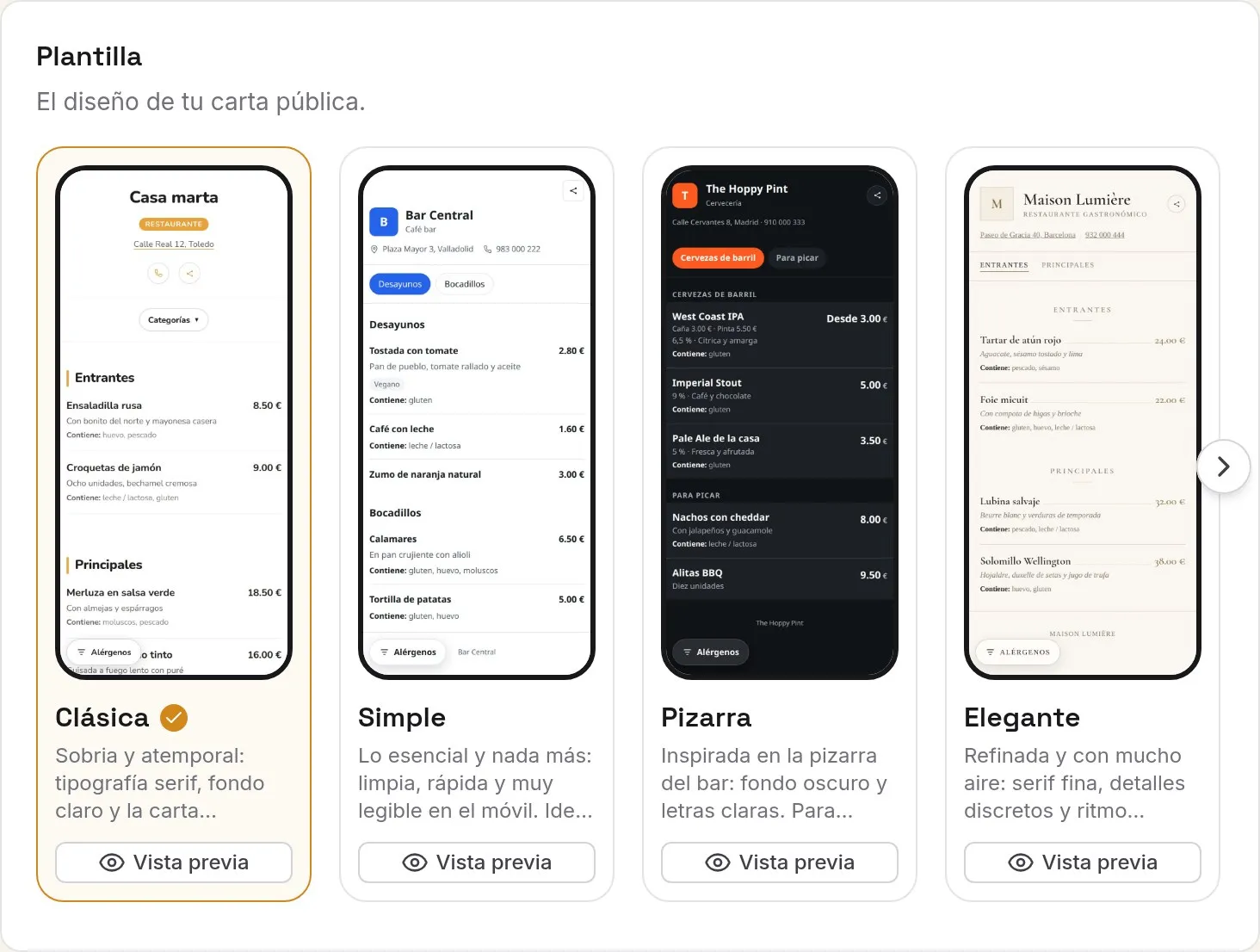
Your design and your website
Choose from 14 templates, add your colour and your logo, and decide whether your website opens the menu directly or a welcome page with your details.
Your menu lives at yourvenue.topristo.com, an address you choose.
Step 4
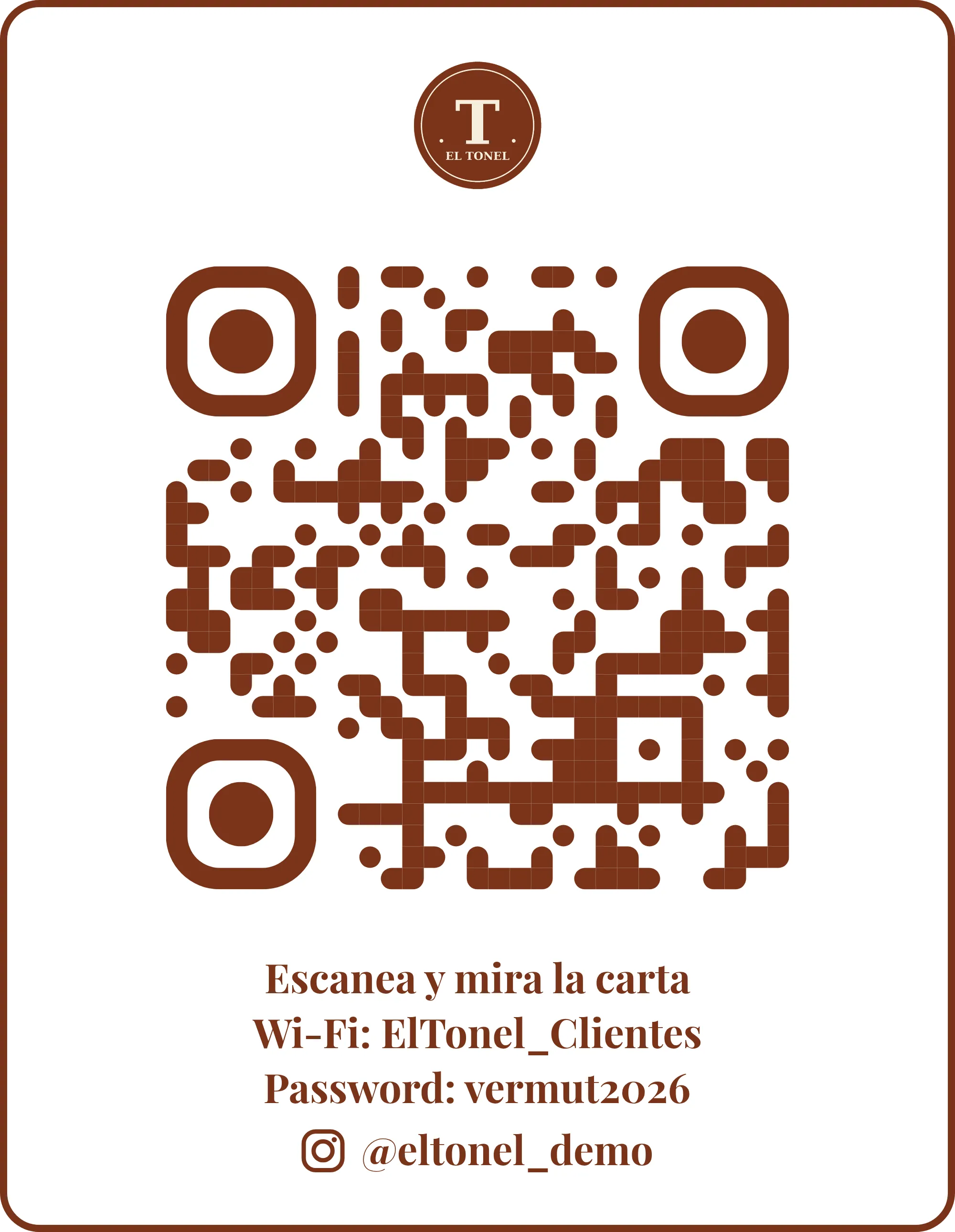
Your QR, on the table
Design the card with your logo, your colours, the Wi-Fi and your Instagram, and download it as PDF, SVG or PNG.
Or order it printed and we'll send it to your venue.
Live demo
What your customer sees
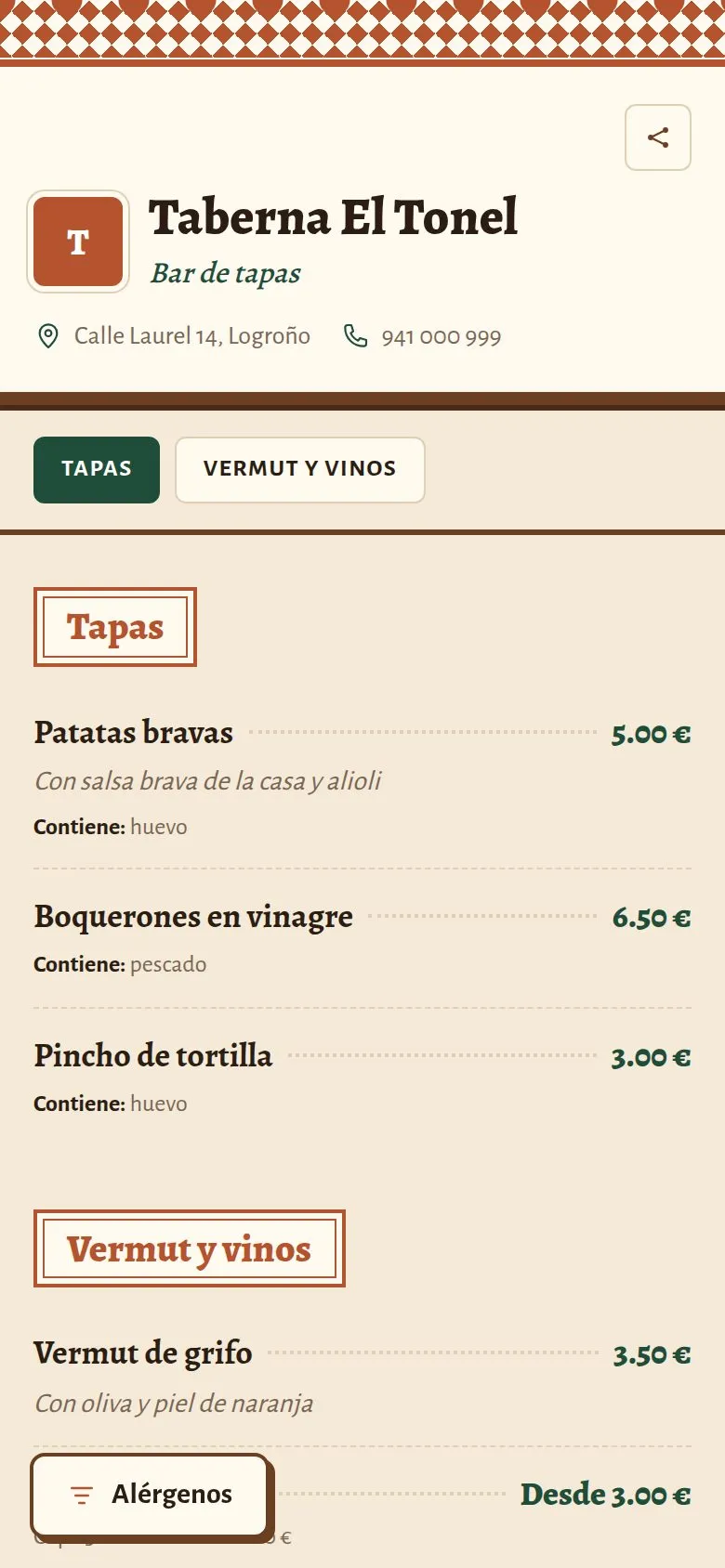
This is what a Topristo menu looks like on a phone. Open it and try it like any other customer.
And day to day
What used to mean reprinting now takes a few seconds from your phone.
A dish has run out
Mark it as sold out and it disappears from the menu straight away.
Change a price
Edit it and the menu shows the new one. The printed QR stays the same.
There's a set lunch menu
Switch it on when service starts and off when it ends.
Free download · CSV
Template to import your menu
Fill it in on Excel with your categories, dishes and prices, and import it into your menu in one go.
Frequently asked questions
How long does it take to get my digital menu?
It depends on the size of your menu. Creating the account takes a minute; if you import your menu from Excel, you can have it published in an afternoon. If you'd rather not do it yourself, we'll set it up for you.
Do my customers have to install anything?
No. They scan the QR with their phone camera and the menu opens in the browser, like any website.
Can I import my menu from Excel?
Yes. Save your sheet as a CSV with the columns category, name and price (and description, if you like) and import it. Before saving you see a preview with any errors. Photos, allergens and diets are added afterwards, dish by dish.
What happens if I change a price?
The menu updates as soon as you save. The QR you already have printed keeps working exactly the same, so there's nothing to reprint.
What your menu does for you
Start today, finish this afternoon
Create your account for free and set up your menu. If you're short on time, we'll do it for you.
Free forever, no card needed